
Tips and Tricks: Creating a "real" blank site
In my presentation: "Creating websites from scratch using Portal Engine" at the Kentico Connection I showed you how to create a really blank site. In this tip I will show you the steps I presented.
In my presentation: "Creating websites from scratch using Portal Engine" at the Kentico Connection I showed you how to create a really blank site. In this tip I will show you the steps I presented.
Step 1: In Site Manager / Sites, start the "New site wizard"

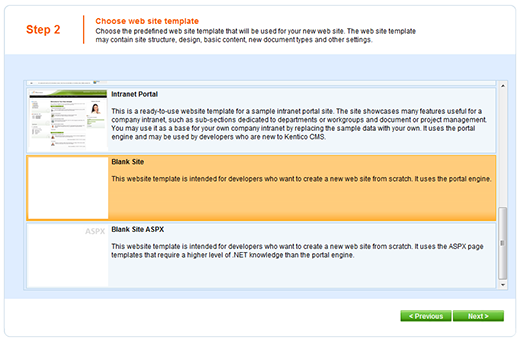
Step 2: Choose "Use web site template" and select the "Blank Site" template
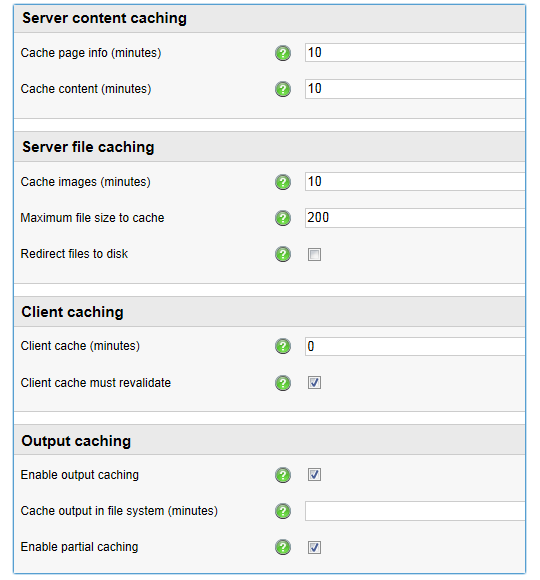
Step 3: Fill in the sites display, code and domain name settings
Step 4: Adjust the global objects selection like follows: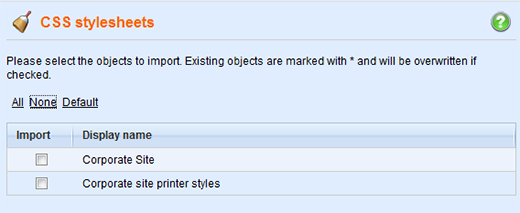
And that's it! Of course feel free to go in and tweak the object selection to your needs.
Note: Imported objects (marked with *) cannot be removed using the "New site wizard". If you want to remove these imported objects then you will have to delete the objects within Kentico CMS.
Step 1: In Site Manager / Sites, start the "New site wizard"
Step 2: Choose "Use web site template" and select the "Blank Site" template
Step 3: Fill in the sites display, code and domain name settings
Step 4: Adjust the global objects selection like follows:
- Administration > Users > Deselect "Andrew Jones"
- Development > Content categories > Select "None"
- Development > CSS stylesheets > Select "None"
- Development > Document types > Select only the relevant ones (e.g. Page, News etc.)
- Development > Page templates > Select "None" (I prefer to create my templates from scratch)
- Development > Web part containers > Select "None"
And that's it! Of course feel free to go in and tweak the object selection to your needs.
Note: Imported objects (marked with *) cannot be removed using the "New site wizard". If you want to remove these imported objects then you will have to delete the objects within Kentico CMS.